
Free Ink Limit (TAC) Calculator & RGB to CMYK Converter
It is the most sinking feeling in the design world. You spend hours perfecting a vibrant, electric blue logo on your 4K monitor. The client loves it. You send the file to press. Three days later, you open the box, and that "electric blue" has turned into a dull, muddy purple.
What happened? You fell victim to the physics of light versus the physics of pigment.
Your monitor emits light. It uses the RGB (Red, Green, Blue) spectrum to blast millions of colors directly into your retinas. Paper, however, absorbs light. It relies on CMYK (Cyan, Magenta, Yellow, Key/Black) ink to subtract lightwaves and reflect what remains. The gamut of ink is significantly smaller than the gamut of light. When you force a neon RGB color into a CMYK mold without conversion, the printer software "clips" the color to the nearest dull equivalent.
At Branding Centres Toronto, we believe that predictable color shouldn't be a guessing game. That is why we are introducing a new standard for file preparation: The Color Cockpit.
Introducing The Color Cockpit
Forget static color pickers. We have built the industry's first physics-based print simulator. The Color Cockpit doesn't just show you a color hex code; it visualizes the physical volume of ink required to create that color on a press.
This tool features Liquid Ink Tanks that animate in real-time. As you adjust your sliders, you watch the Cyan, Magenta, Yellow, and Black tanks fill up. It effectively acts as a high-fidelity RGB to CMYK conversion tool that warns you before you make a costly mistake.
Instead of guessing if your file is safe, watch the Traffic Light System:
• Green Light: Your file is within ISO 12647-2 print standards.
• Orange Light: You are approaching dangerous saturation levels.
• Red Light: You have broken the laws of physics. The ink will not dry, and the color will shift.
Test your brand colors right now in the simulator below:
What is "TAC" and Why Does It Ruin Prints?
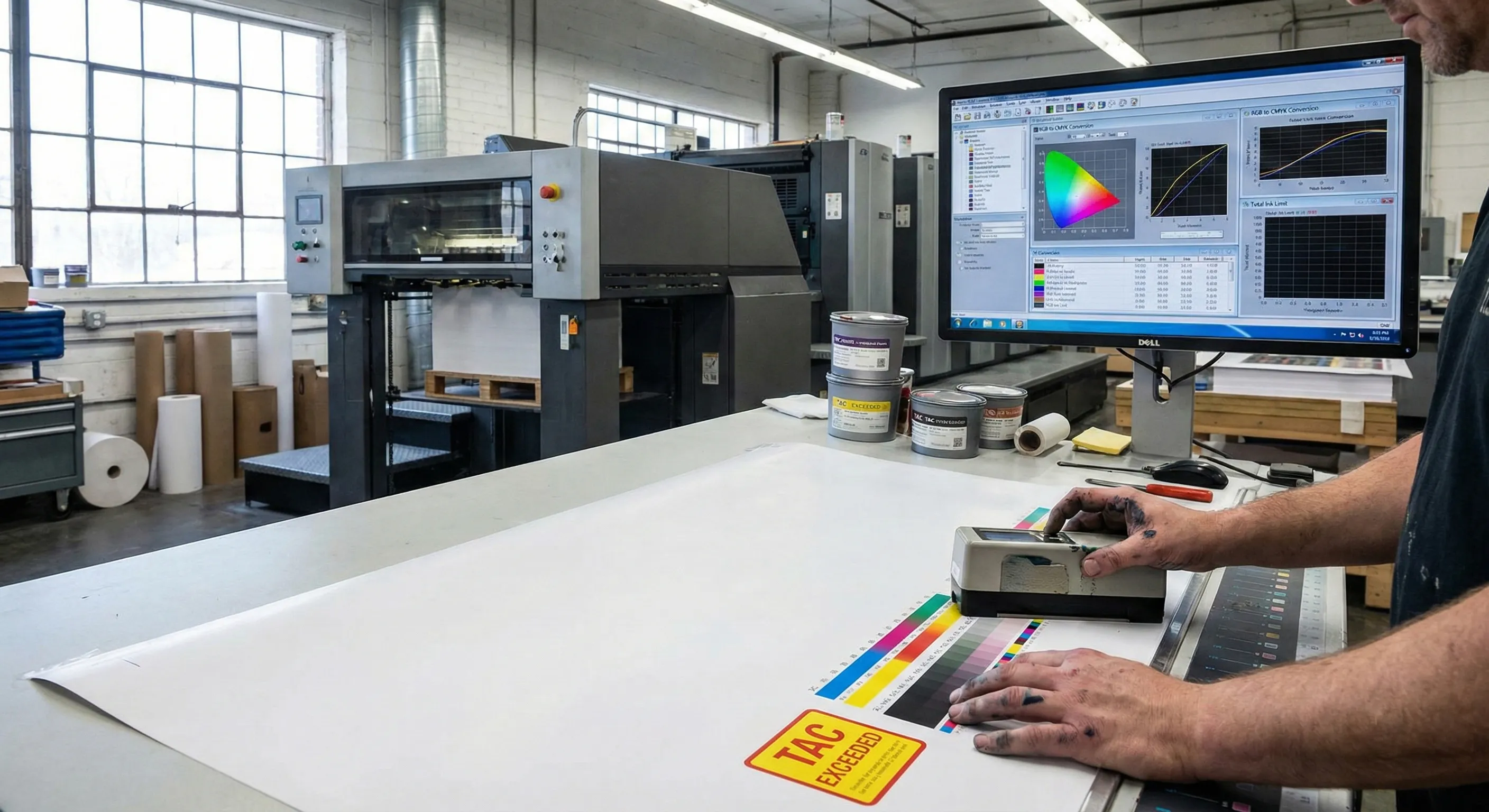
If you played with the tool above and hit the "Red Light," you likely triggered the Total Area Coverage (TAC) calculator.
In commercial printing, TAC refers to the sum of all four ink percentages in a single area. For example, if you create a "Rich Black" by using 100% Cyan, 100% Magenta, 100% Yellow, and 100% Black, your TAC is 400%.
While this looks like a deep black on your screen, on a physical press, this is a disaster. Paper has an absorption limit. When you exceed the ink density limit (300%), the paper becomes oversaturated - essentially turning into a "soup." The ink cannot dry fast enough before the next sheet lands on top of it, leading to "set-off" (ink smearing onto other sheets) and a loss of detail in shadow areas.
The Color Cockpit is designed to prevent this. By visualizing the fluid volume, you can see exactly when you are moving from a safe, deep black to a dangerous, muddy mess.
Rich Black vs. Standard Black
This is the most common error we see in file submission.
• Standard Black (0C, 0M, 0Y, 100K): Safe, but can look dark grey in large areas.
• Designer Rich Black (60C, 40M, 40Y, 100K): A TAC of 240%. This is the "Goldilocks" zone - deep, neutral, and safe for drying.
• Registration Black (100C, 100M, 100Y, 100K): A TAC of 400%. This will almost certainly cause production issues.
Real World Examples: Where Color Math Matters
The implications of these metrics change depending on what we are manufacturing for you. The difference between Rich Black vs. Standard Black might be negligible on a business card, but it is critical on a 53-foot trailer.
Vehicle Wrap Color Matching
When dealing with vehicle wrap color matching, we aren't just printing on paper; we are printing on premium cast vinyls like 3M or Avery Dennison. These materials hold ink differently than cardstock. If your TAC is too high, the solvents in the ink can attack the adhesive of the vinyl, leading to edge curling or failure months down the road. Furthermore, wraps are often viewed in direct sunlight, where Delta-E color shift (the visual distance between two colors) becomes painfully obvious if a panel is reprinted with slightly different ink settings.
Coated vs. Uncoated Dot Gain
Use the material toggles in The Color Cockpit to switch between "Coated" and "Matte/Uncoated." You will notice the colors shift. This simulates Coated vs. Uncoated dot gain.
On uncoated paper (like a letterhead), the ink soaks into the fibers and spreads out (gains size). A 50% halftone dot might spread to look like a 65% dot, darkening the image. If you do not account for this by reducing your input percentages, your crisp photo will print looking dark and heavy. Our tool helps you visualize this absorption before we even plate the job.
Conclusion: Print with Precision
Marketing is an investment; don't let poor file setup devalue your assets. By understanding the limits of ink and paper, you ensure that the brand you built on the screen is the brand the world sees on the street.
Whether you are in Etobicoke, Mississauga, or downtown Toronto, Branding Centres is here to ensure your vision survives the transition from pixels to pigment.
Contact us now at+1-(416) 288-8661 or email us at info@brandingcentres.com.
Frequently Asked Questions (FAQ)
Q: What is a safe Delta-E for printing?
A: Delta-E measures the distance between two colors. A Delta-E of under 2.0 is generally considered invisible to the human eye. In commercial printing, a variance of 3.0 to 5.0 is often the acceptable tolerance for ISO 12647-2 print standards, though at Branding Centres, we aim for the lowest possible deviation.
Q: How do I lower my TAC in Photoshop?
A: You can cap your Total Area Coverage by adjusting your color settings. Go to Edit > Color Settings. Under "CMYK," select "Custom CMYK." Here you can set the Ink density limit (300%) (or lower for newsprint). This ensures that when you convert images from RGB to CMYK, Photoshop automatically reduces the ink levels to safe limits.
Q: Why does my blue look purple in print?
A: This is usually a result of the screen displaying a "clean" blue (RGB) that is outside the CMYK gamut. To replicate that brightness with ink, the printer adds Magenta. If the Cyan and Magenta levels are too close (e.g., 100% Cyan and 95% Magenta), the eye perceives it as purple. To fix this, ensure there is at least a 30% difference between your Cyan and Magenta values.